
This guide covers everything about how you earn on Sọna, from the moment a reader buys your book to the moment money lands in your payout account. It also walks you through how to read your sales data, track your performance over time, and set up your payout preferences.
Understanding Sona earnings and payouts up front saves you from guessing later, so here is the full picture.
How the Revenue Split Works
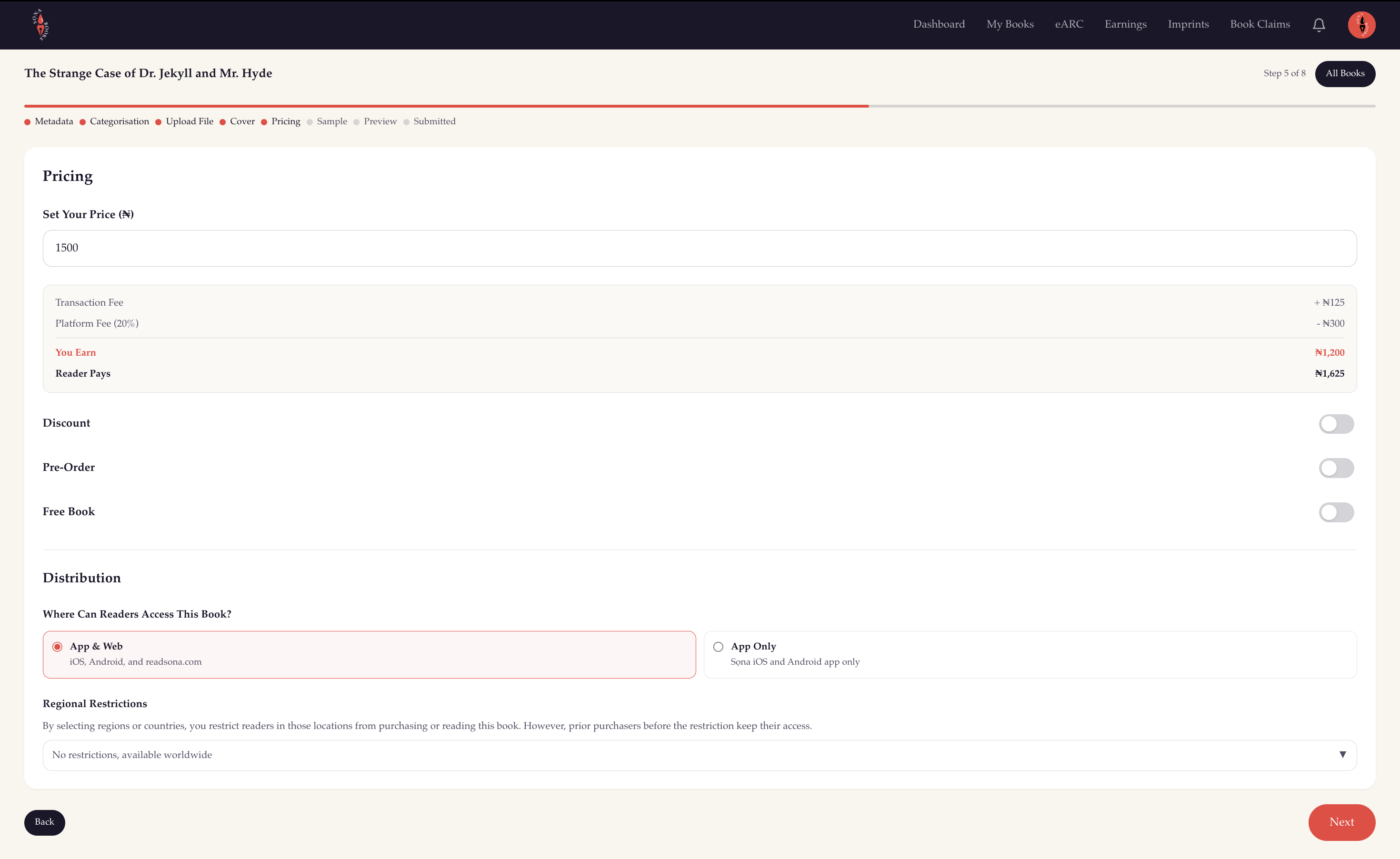
Sọna calculates your earnings from the book's base price: 80% goes to you, and 20% is Sọna's platform fee.
Payment processing is handled separately in the reader-facing checkout price. Readers see their local processing gross-up for their payment methods. For example, if a Nigerian account pays with a card issued outside Nigeria, the checkout total may update to the international card processing gross-up before payment.
Example: a book priced at ₦3,000:
- Author earnings (80% of base price): ₦2,400
- Sọna platform fee (20% of base price): ₦600
- Nigerian reader-facing total: about ₦3,148
- International reader-facing total: about ₦3,226
The extra amount above ₦3,000 covers payment processing. It is not an extra author/platform commission.
The higher your book price, the more you earn in absolute terms per sale. Pricing strategically matters.
Free books do not generate revenue, but they are a powerful tool for building readership and directing attention to your paid catalogue.
A Global Platform, Naira Pricing
All book prices on Sọna are set in Nigerian Naira (₦). You price your book once in Naira, and that becomes the base price for earnings.
However, Sọna is not limited to Nigerian readers or Nigerian authors. We accept payments through Paystack, including Nigerian local payment methods and supported international cards. A reader in the UK, the US, Canada, or anywhere else can purchase your book; their card issuer may convert the Naira charge into their local currency, and your earnings land in Naira as normal.
This means you set your price once and reach readers everywhere, without any additional setup.
The Earnings Dashboard
To view your earnings, go to Publish Dashboard > Earnings.
Summary Cards
At the top of the page, you will see:
- Total Earnings: all confirmed earnings in your selected date range
- Total Sales: number of individual purchases
- Pending Payout: earnings confirmed and queued for your next payout
- Preorder Escrow: funds from preorder sales being held until your book's release date
- Preorder Count: number of active preorders currently in escrow
Date Range Filter
You can filter all data by:
- This Week
- This Month
- Last Month
- This Quarter
- Last Quarter
- This Year
- Last Year
- All Time
- Custom (any date range you choose)
Use date filters to measure launch week performance, evaluate a discount campaign, compare quarters, or prepare for tax reporting.
Identity Filter
If you have more than one pen name or, for publisher accounts, more than one imprint, a second dropdown appears alongside the date filter. Use it to isolate earnings for a specific pen name or imprint. All figures on the page, including the summary cards, the sales log, and the by-book breakdown, update to show only that identity's data. Select All Pen Names or All Imprints to return to the combined view.
Earnings Tabs
Earnings Tab
The main view shows two tables:
Individual sales log: a line-by-line record of every sale, showing:
- Book title
- Date and time of purchase
- The price the reader paid
- Your earnings for that specific transaction
This is your full transaction history. Use it to cross-reference with your bank statements or for your own records.
Earnings by book: a summary table per title:
- Cover thumbnail
- Book title
- Total number of sales
- Total amount earned
Use this to understand which titles are carrying your catalogue and which might need more promotion.
Preorders Tab
Shows every preorder transaction:
- Book title
- Date of preorder
- Amount paid
Preorder funds sit in escrow until your publication date arrives. On release day, those funds automatically move into your Pending Payout balance and are included in your next scheduled payout.
Payout History Tab
A full record of every payout you have received:
- Date
- Amount paid out
- Status
Use this for accounting, reconciliation, or any time you need to verify that a payment was made.
Tracking Your Sales Performance
Your earnings dashboard gives you everything you need to understand how your books are doing over time. Some ways to use it:
Launch Tracking: Set the date range to your launch week and see exactly how many copies moved and what you earned.
Discount Evaluation: Compare sales before, during, and after a promotional discount to see whether it drove meaningful volume.
Catalogue Performance: Use the Earnings by Book table to identify your best-performing titles and your underperformers.
Quarterly Planning: Filter by This Quarter or Last Quarter to track growth across periods.
Exporting Your Reports
You can export your earnings data for your own records at any time. Use the export function to download your sales log as a file you can open in spreadsheet software like Excel or Google Sheets.
This is useful for:
- Tax preparation and filing
- Royalty reporting to co-authors or collaborators
- Personal financial tracking
- Sharing with an accountant or financial adviser
Export from the Earnings tab within the date range you need.
Setting Up Your Payout
Before Sọna can send your earnings to your payout account, you need to complete three steps. Go to Publish Dashboard > Payout to get started.
Step 1: Add Your Payout Details
Add the bank account or supported mobile money wallet where your earnings will be sent.
For Nigeria-based accounts:
- Select your bank from the dropdown (50+ banks supported, including Access Bank, GTBank, First Bank, Zenith, UBA, and more)
- Enter your account number
- Enter the account holder's name (must match the name on the account)
For mobile money in Ghana, Kenya and Ethiopia:
- Choose Mobile Money in Payout Settings
- Select your provider
- Enter your mobile money number
- Enter the registered name exactly as it appears on the wallet
Ghana supports MTN MoMo, Telecel Cash, and AirtelTigo Money. Kenya supports M-Pesa and Airtel Money. Ethiopia supports Telebirr and M-Pesa Ethiopia. The minimum is ₦10,000 for Ghana and Kenya and ₦30,000 for Ethiopia.
For international bank accounts:
Fill the fields shown for your country and payout method, such as bank name, account number, account type, branch code, sort code, routing number, IBAN, or SWIFT/BIC where applicable.
Double-check all details carefully. Incorrect payout information can cause payouts to fail or be sent to the wrong account.
Step 2: KYC Verification
KYC (Know Your Customer) is a standard financial compliance step that verifies your identity before we can send money to your account.
After submitting your payout details, Sọna reviews and verifies your information. You will receive an email update on your verification status.
You can check your current KYC status at any time in Publish Dashboard > Settings.
KYC Statuses
- Pending: Under review by the team
- Approved: Verified: payouts are enabled
- Rejected: An issue was found: check your email for what is needed
Your books will not be sold while your KYC is pending. Verification must be completed to list books on the platform.
For Publisher Accounts: Company documentation (CAC registration) may be required as part of verification.
Step 3: Choose Your Payout Schedule
Once your KYC is approved, you select how often you receive your earnings.
Weekly
Payouts every Monday. Best for authors who want steady, frequent cash flow.
Monthly
Payouts on the first business day of each month. Best for those who prefer one larger consolidated payment and easier monthly accounting.
On-Demand
You manually request a payout whenever you want one, once your pending balance reaches the minimum for your payout route. You can only make one payout request every 7 days.
Changing your schedule: You can update this at any time. Changes take effect 7 days after you save them, so plan if switching before an expected payout.
Your Payout Status at a Glance
From the Payout page, you can always see:
- Pending payout amount: how much is queued for your next transfer
- Last payout date: when your most recent payout was sent
- Current schedule: weekly, monthly, or on-demand
- Next scheduled date: the date of your next automatic payout
For the full history of past payouts, check Earnings > Payout History.
What Happens on Payout Day
On your scheduled payout date:
- Sọna processes your pending balance
- The transfer is initiated to your verified payout account
- Funds typically arrive within 1 to 3 business days, depending on your bank
- The transaction appears in your Payout History tab
If a payout fails because a payout detail is incorrect or out of date, you will be notified by email and prompted to update your information.
Common Questions
Can I update my payout details?
Yes. You can update your payout details from the Payout page. Sọna may re-check your details before payouts resume.
Why is my balance not in my Pending Payout yet?
Sales go through a confirmation window before appearing in your Pending Payout balance. Preorder funds remain in escrow until the book's release date.
My KYC was rejected. What do I do?
Check the email you received: it will explain the specific reason. Common issues include mismatched names between your Sọna account and your bank account. You can resubmit after correcting the issue.
I changed my payout schedule, but nothing changed.
Schedule changes take 7 days to take effect.
Can I get paid if I am not in Nigeria?
Yes. Individual authors in Ghana, Kenya and Ethiopia can choose supported mobile money. Eligible authors in Ghana, South Africa, Kenya, Ethiopia, the United Kingdom, the United States and Canada can add bank payout details. Cross-border processing fees and currency conversion are deducted from payouts outside Nigeria.
Set up your earnings and payouts now: go to Publish Dashboard and click Earnings or Payout in the sidebar.
Related Posts
- Setting Up Your Payout on Sọna: the full step-by-step walkthrough for adding your payout details, completing verification, and choosing your schedule
- How Pre-Orders Work on Sọna: how pre-order funds are held in escrow and when they are released to you
- Your Sọna Publish Dashboard: A Complete Guide: navigating earnings, books, and settings from one place
This also covers Sona mobile money payouts and the Sona payout threshold you need to hit before a transfer goes out.