
This is Part 1 of a 2-part series on getting started on Sọna.
Part 1: Setting Up as an Author|Part 2: Setting Up as a Publisher
Getting your author account set up on Sọna takes about 10 minutes. This guide walks you through the sign-up process, what happens at each stage, and what you need to do to get fully verified and ready to publish.
Setting up a Sona author account is the first step, and it takes about ten minutes start to finish.
Author vs Publisher: What Is the Difference?
When you sign up, you will be asked to choose between two account types:
Author Account
For individual writers publishing their own work. You enter your name (or pen name) and manage your own titles directly.
Publisher Account
For publishing houses, imprints, or companies publishing books on behalf of authors. Publisher accounts require a company name and a CAC (Corporate Affairs Commission) registration number, and the publisher name field is mandatory on all book uploads.
Both account types have access to the same features: uploading books, managing earnings, running eARC campaigns, and setting up payouts. The difference is in the account identity and the fields required during signup.
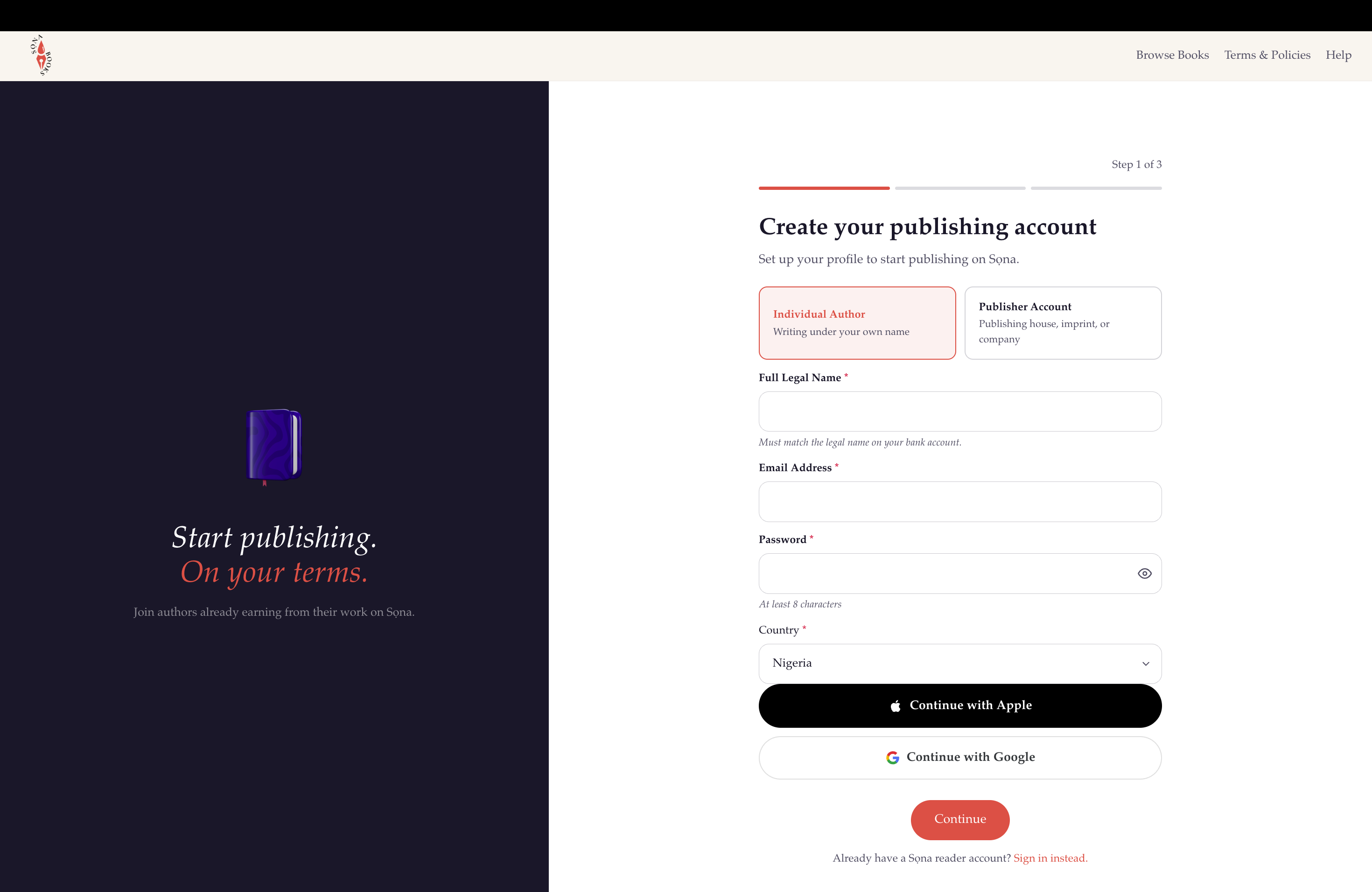
Step 1: Create Your Account
Go to the Publish section of the Sọna website or click Publish in the navigation.
You can sign up using:
- Email and Password
- Sign in with Google
- Sign in with Apple
If you choose email and password, you will receive a verification email. Click the link in that email to confirm your address before proceeding.
Country Selection is required: this determines which payout options are available to you.
Step 2: Your Profile
After creating your account, you will fill in your public profile. This is what readers see when they click on your name anywhere on Sọna.
- Pen Name (or Real Name): the name that appears on your books and profile page. This can be different from your legal name
- Bio: a short description up to 500 characters about you and your writing. You can use basic formatting (bold, italics, links). Make it engaging, as readers do check author bios
- Genres: choose exactly 3 genres. These determine which curated shelves your profile appears on
- Website or Social Link: one link (your website, Instagram, TikTok, etc.) this is required
You can add your profile photo and additional social links (Instagram, Twitter/X, TikTok) after signing up from Publish Dashboard > Edit Author Profile.
Multiple Pen Names: If you write under more than one name, you can create additional pen names from Publish Dashboard > Pen Names. Each pen name gets its own profile page. Completely separate identities under one account.
See the full guide: How to Manage Pen Names on Sọna.
Step 3: Accept the Author Agreement
Before your account is created, you will be shown a summary of the Sọna author agreement
covering the revenue split, content policy, and payout terms. Read it and tap I Agree & Create Account to finish.
After Signup: KYC Verification
Once your account is created, it enters a KYC pending state. KYC (Know Your Customer) is a standard verification process that confirms your identity before enabling full publishing and payout access.
Payout Setup
After signing up, you need to set up your payout details. This is where you add your bank account information so Sọna knows where to send your earnings.
Sọna pays authors in eight countries. The payout options depend on the country on your account:
- Nigeria: your Nigerian bank account.
- Ghana, Kenya and Ethiopia: your local bank account or mobile money.
- South Africa: your local bank account.
- United Kingdom, United States and Canada: your local bank account or PayPal.
If you are based outside these eight countries, you can still create an account and run eARC campaigns. Selling books and receiving payouts are not yet available in your country.
The payout page shows only the fields your country needs.
Adding your payout details occurs after you've logged into Publish Dashboard. Go to Publish Dashboard > Payout Settings. However, you will not be able to publish or receive payouts until this is completed and your KYC is verified.
See the full payout guide: Setting Up Your Payout on Sọna.
What this means in practice:
- You can upload books, but they will not be eligible for submission for listing on Sona
- Readers can purchase your books once they are approved and live
- You can see your KYC status at any time in Publish Dashboard > Settings
How Verification Works
The Sọna team verifies your details. You will receive an email when your verification is complete, or if additional information is needed.
KYC Statuses
- Pending: Under review by the Sọna team
- Approved: Verified: full publishing and payout access enabled
- Rejected: An issue was found: check your email for details
If your KYC is rejected, the rejection email will explain what went wrong. Common reasons include mismatched names between your account and bank account, or missing information. You can resubmit after correcting the issue.
Signing In
Once your account is set up, sign in through the main Sọna navigation.
Your author/publisher account and your reader account share the same account details. You do not need separate logins. When you are signed in, you can:
- Switch between your reader library and your Publish Dashboard freely
- Browse and buy books as a reader while also managing your published titles
- Access all your notifications, cart, and settings from the same profile
What Happens After Sign-Up
Here is a quick summary of the full journey from signup to first payout:
- Create your account: email or social login, choose author or publisher
- Fill in your profile: name, bio, social links, photo
- Complete KYC: complete bank and identity verification
- Upload your first book: the 8-step upload wizard
- Book is reviewed: the team reviews within 1 to 5 business days
- Book goes live: visible to readers on Sọna
- First sale comes in: earnings appear in your dashboard
- Set your payout schedule: weekly, monthly, or on-demand
- First payout: earnings sent to your payout account
Tips for Getting Started
- Fill in your bio early. Readers who find your book often check your author profile before buying. A complete profile builds trust
- Upload a profile photo. It does not need to be professional, but having a real photo makes your profile feel genuine
- Start KYC as soon as possible. Even if you are still working on your book, submitting your bank details early means you will be verified and ready to submit your book for listing
- Choose your genres carefully. This affects how your books are discovered. Be accurate. Choosing the wrong genre to get more visibility tends to lead to lower conversion because readers feel misled
Ready to get started? Go to readsona.com/publish to create your author account.
Also in This Series
- Part 1: Setting Up as an Author
- Part 2: Setting Up as a Publisher
If you are researching how to publish ebooks Nigeria wide, this is ebook publishing for authors covered from the very first step.