
This is Part 2 of a 2-part series on getting started on Sọna.Part 1: Setting Up as an Author|Part 2: Setting Up as a Publisher
Publisher accounts on Sọna are designed for publishing houses, imprints, and companies that publish books on behalf of multiple authors. This guide covers the publisher-specific setup steps, what makes a publisher account different from an author account, and how to manage books across multiple authors.
A Sona publisher account is built differently from an author account, with tools made for managing more than one writer.
What Is a Publisher Account?
A publisher account lets you:
- Upload books under different author names (pen names) without each author needing their own Sọna account
- Manage multiple titles across different authors from a single dashboard
- Set up imprints: sub-brands or publishing labels under your main publisher name
- Handle earnings and payouts centrally for all titles you publish
Publisher accounts require:
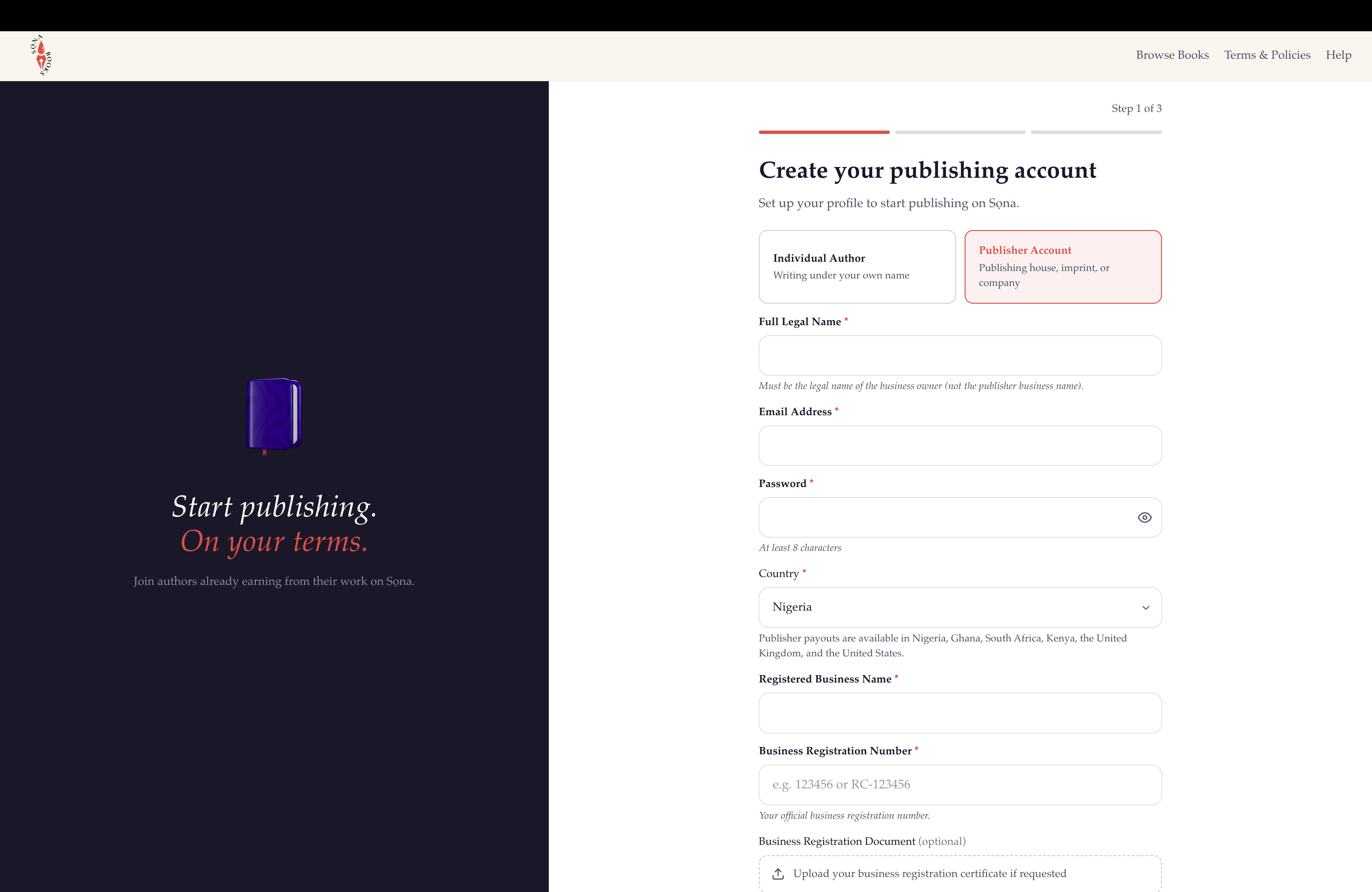
- A company name (the name that appears on your books and your public publisher profile)
- A business registration number (in Nigeria, this is your CAC number)
- A business registration certificate if you are registered in Ghana, South Africa, Kenya or the United States. We cannot check those registries online, so you upload the certificate at signup. In other countries, we may ask for it later
Step 1: Create Your Publisher Account
Go to the Publish section of the Sọna website and select Publisher as your account type.
You can sign up using:
- Email and password
- Sign in with Google
- Sign in with Apple
During signup, you will enter your company name and business registration number. If you sign up with your email, you will receive a verification email. Confirm your address before continuing.
Step 2: Your Publisher Profile
After signing up, fill in your publisher profile at Publish Dashboard > Profile. This is your public face on the platform.
- Publishing house name: the company or brand name that appears on your books and your profile page
- About your publishing house: a short description of your company, what you publish, and your editorial identity. Readers and authors both look at this
- Website: one link (your website, Instagram, TikTok, etc.), required
Your profile is always editable from Publish Dashboard > Profile.
Step 3: Payout Setup
Set up your payout details at Publish Dashboard > Payout. All earnings from your published titles are paid to this account.
Sọna pays publishers in eight countries. The payout options depend on the country on your account:
- Nigeria: your Nigerian bank account.
- Ghana, Kenya and Ethiopia: your local bank account or mobile money.
- South Africa: your local bank account.
- United Kingdom, United States and Canada: your local bank account or PayPal.
The account holder's name should match your company name or an authorised signatory on record. See the full guide: Setting Up Your Payout on Sọna.
If you are based outside these eight countries, you can still create an account and run eARC campaigns. Selling books and receiving payouts are not yet available in your country.
Payouts are held until your KYC is complete.
Step 4: KYC Verification
Publisher accounts go through the same KYC (Know Your Customer) process as author accounts, with one addition: you may be asked to provide company documentation such as your business registration certificate (your CAC certificate in Nigeria) or a letter of incorporation.
The Sọna team verifies your details manually. You will receive an email when your verification is approved, or if anything further is needed.
KYC Statuses:
- Pending: Under review by the Sọna team
- Approved: Verified: full publishing and payout access enabled
- Rejected: An issue was found: check your email for details
Managing Imprints
Imprints are publishing labels or sub-brands under your main publisher account. For example, Cassava Republic and Narrative Landscape are different brands, each with its own editorial identity, its own reader audience, and its own feel, even if they share the same parent company. Sọna supports this out of the box.
Manage your imprints at Publish Dashboard > Imprints. Each imprint gets its own logo, bio, genre focus, social links, and public profile page. When uploading a book, you choose which imprint to publish it under. The imprint name appears on the book page alongside the author credit.
See the full guide: How to Manage Imprints on Sọna.
Uploading Books as a Publisher
The upload process is the same as for authors: an 8-step wizard covering your manuscript, cover, metadata, pricing, and settings.
The key difference is the author name field: as a publisher, you will enter the author's name (or pen name) for each book. This name appears on the book page and in your catalogue. You are responsible for making sure the credited author name is accurate and authorised.
Book Claims
If an author on Sọna sets a pen name that matches the credited author of a book in your catalogue, a book claim is created and sent to you for review. Claims appear in Publish Dashboard > Book Claims.
You can confirm or dispute each claim. If you dispute, the author is notified and can resubmit with a corrected name or escalate to the Sọna team for independent review.
See the full guide: How Book Claims Work on Sọna.
What Happens After Setup
Here is the full publisher journey from signup to first payout:
- Create your publisher account: company name, business registration number
- Fill in your profile: company bio, logo, website
- Set up payout details: bank account, mobile money or PayPal, depending on your country
- Complete KYC: company documentation if requested
- Upload your first book: 8-step upload wizard, with author name credited
- Book is reviewed: the Sọna team reviews within 1 to 5 business days
- Book goes live: visible to readers
- Sales come in: earnings appear in your dashboard
- Payout: sent to your payout account on your chosen schedule
Tips for Publishers
- Complete your profile before uploading. A professional publisher profile with a logo and bio makes your catalogue look credible to readers browsing by publisher.
- Start KYC early. The sooner your documentation is submitted, the sooner you can receive payouts. Do not wait until your first book is live.
- Keep author names consistent. If an author publishes under a pen name, use that pen name consistently across all their titles. Inconsistent attribution confuses readers and can complicate book claims.
- Use imprints if your catalogue covers distinct genres. It makes your catalogue easier to navigate for readers who follow a particular imprint.
Ready to get started? Go to readsona.com/publish to create your publisher account.
Also in This Series
- Part 1: Setting Up as an Author
- Part 2: Setting Up as a Publisher
Related Guides
- How to Manage Imprints on Sọna: full guide to setting up and managing your publishing labels
- How Book Claims Work on Sọna: what happens when an author claims credit for a book in your catalogue
- How Promotions Work on Sọna: paid banners, emails, notifications and social features for your books
- Your Sọna Publish Dashboard: A Complete Guide: overview of every section in the dashboard
Whether you run an ebook publishing house Nigeria based or anywhere else, this covers what a digital publishing platform Africa wide should give you.