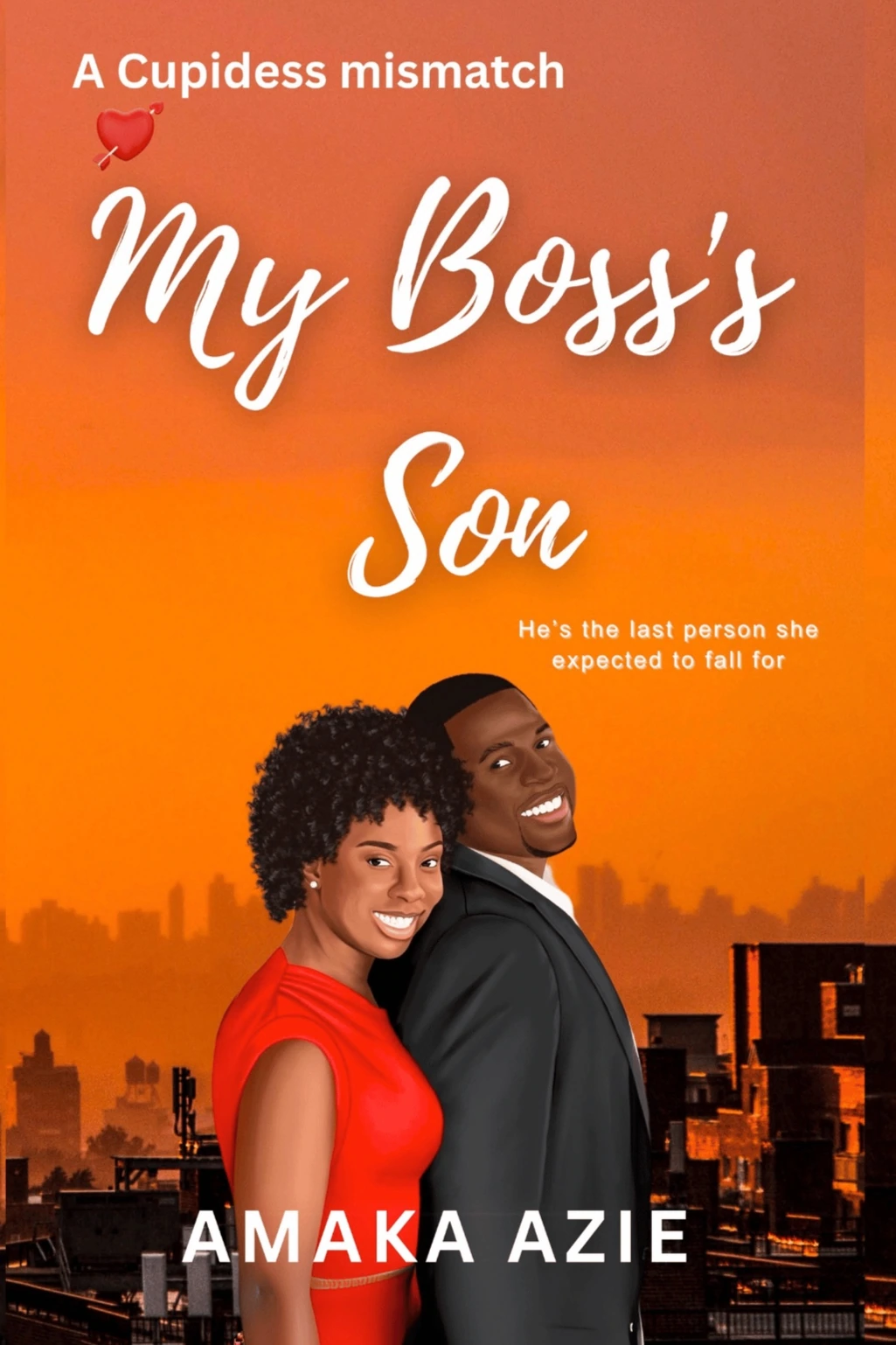
When your book is approved and live on Sona, it gets its own dedicated book page, the place readers land when they click on your title anywhere on the platform. Understanding how this page works helps you make sure your book is presented exactly the way you want it.
Your Sọna book page is where readers land the moment they click your title anywhere on the platform.
What the Book Page Shows Readers
Your book page is your book's storefront. It displays:
- Cover Image: large and prominently placed. This is the most important visual element
- Title and Author Name
- Genre and Tags: help readers understand what kind of book this is
- Age Ratings: displayed clearly so readers know if the content is for general audiences or adults only
- Blurb/Description: your book description. Readers read this before deciding to buy, so it matters
- Price: shown in Naira, with the relevant payment processing gross-up included in the reader-facing total
- Read Sample Button: if you have enabled the free sample, readers can start reading immediately without purchasing
- Buy/Get Button: the purchase call-to-action
- About the Author: your author name and bio, pulled from your profile. Includes links to your website and social accounts if you have added them
- Series Information: if your book is part of a series, readers will see the series name and other books in it
- Publisher: your publisher name. This is only compulsory for registered Publisher accounts on Sọna
How the My Books Section Works
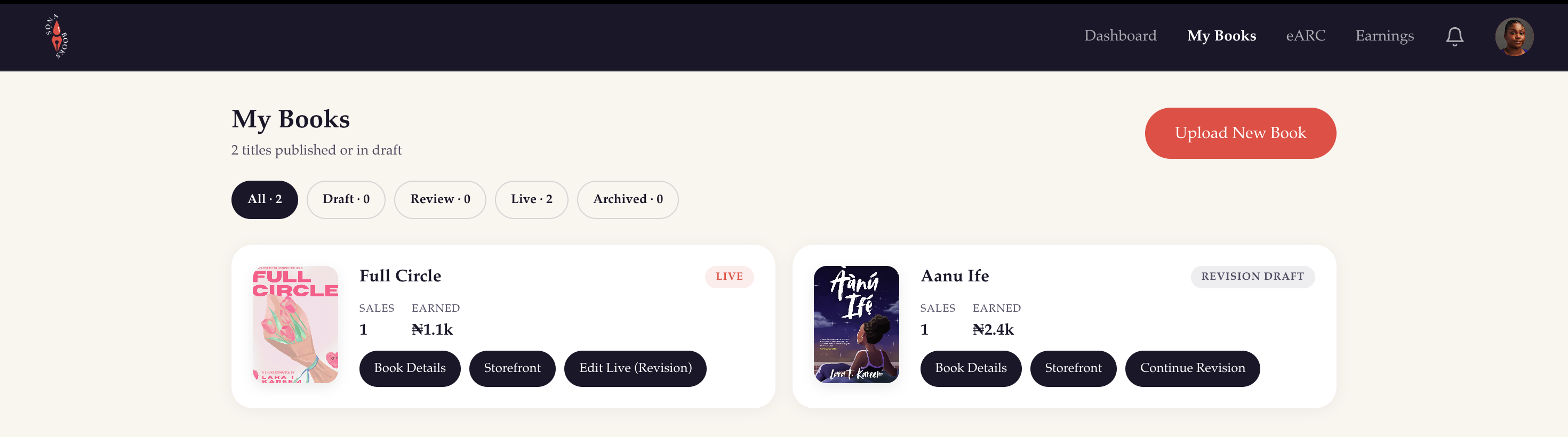
In your Publish Dashboard, the Books page is your complete book management hub.
Book Library Filters
Use the tabs to filter your list:
- All: every book in your account
- Draft: uploads you started but have not submitted yet
- Review: books currently being reviewed by the Sọna team
- Live: books that are published and available to readers
- Archived: books you have removed from your active list
Status Badges
Each book in your library shows a colour-coded status badge so you can see where every title stands at a glance:
Coral = Live = Published and available to readers
Purple = Approved/Scheduled = Approved, waiting for publication date
Orange = Pending Reapproval = Changes submitted, under review
Gray = Revision Draft = A revision is in progress
Yellow = Under Review = Submitted, waiting for initial approval
Red = Rejected = Did not pass review
Muted = Withdrawn = You unpublished the book
Your Book Detail Page (in the Dashboard)
Click on any book in your library to open its full management page. This is where you handle everything related to that specific title.
What You Can See
- Current status and any review feedback
- Release date
- Published date, if the book is already live
- Current reader-facing price
- Discount status, if a promo discount is active or scheduled
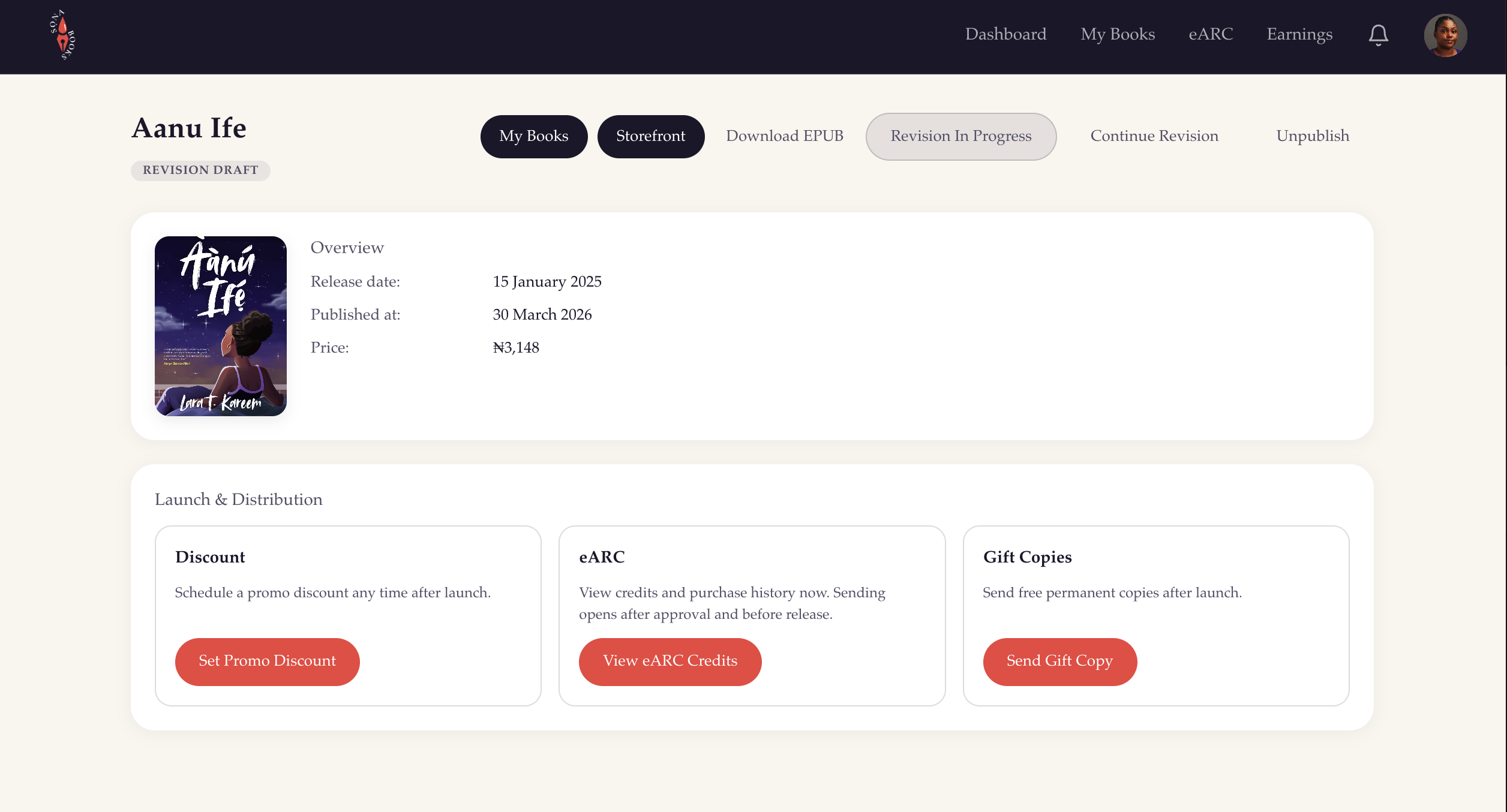
What You Can Do
Promotional Discount
Enable a time-limited discount for a live book without going through reapproval. Set a discounted price and a date range, the discount activates and deactivates automatically.
Edit/Start Revision
For changes that require reapproval (title, cover, description, price, genres, age rating, etc.), start a revision from here. You will go back through the upload flow from the relevant step.
Withdraw the Book
Take your book off sale. Readers who already purchased keep their access. Any active pre-orders are automatically refunded.
eARC Campaign
For approved books, whether scheduled or already live, manage your advance reader copy campaign from here. See the eARC guide for full details.
Gift Copies
Send complimentary copies to readers by email. Available for live paid books.
Download Your File
Authors can download the EPUB file they originally uploaded at any time.
Open the Storefront
Jump from the dashboard to the public book page readers see.
Making the Most of Your Book Page
Your cover does the most work. Readers scroll through the catalog quickly. A professional cover that matches what readers expect from your genre dramatically increases click-through rates. If your book is not converting views to sales, the cover is the first thing to revisit.
Write your blurb to sell, not to describe. Many authors summarise the plot. The best blurbs create tension, intrigue, or emotional pull that makes a reader feel they have to know what happens. Study the blurbs on bestselling books in your genre and take notes.
Keep your author profile complete. Readers who are on the fence often click through to your author profile to learn more. A full bio, a photo, and links to your social presence all build the trust that pushes someone from considering to buying.
Use series information. If you write in a series, make sure every book in the series has the series name and correct book number filled in. This links your books together on the platform and makes it much easier for a reader who loved book one to find book two.
Manage your books anytime from Publish Dashboard and click on Books.
Need more help? Select Report a Problem from your Publish Dashboard.
Related Posts
- How to Upload Your Book on Sọna: the full publishing walkthrough
- Getting Your Book on Sọna Part 2: How to Edit Your Book: updating your cover, description, price, and metadata
- How to Market Your Book on Sọna: driving readers to your book page
Think of it as your ebook book page acting like a small ebook storefront, built to convert a visit into a sale.